

Key Takeaways
The Chili Piper Salesforce integration uses Customer Relationship Management (CRM) data to qualify and route leads, identify existing owners, schedule meetings, and write booking activity back to Salesforce.
Chili Piper can create or update Leads and Contacts, change ownership, create Events, update fields, and add prospects to Campaigns based on your configuration.
If routing problems come from bad rules or Salesforce data, fix the setup first. Consider another platform when your sales workflow needs capabilities Chili Piper doesn’t support directly.
Connecting Chili Piper to Salesforce is only useful if the two systems work together the way your sales process requires.
The Chili Piper Salesforce integration gives you several ways to connect routing, booking, and CRM workflows. If you’re evaluating Chili Piper’s features and overall fit, the Salesforce setup is a part of that decision.
This guide walks through those decisions, the setup process, common issues, and how to tell whether the integration fits your sales workflow.
How does Chili Piper integrate with Salesforce?
Chili Piper integrates with Salesforce to qualify, route, schedule, and track inbound leads.
When someone submits a demo form, Chili Piper can check whether that person already exists in Salesforce as a Lead or Contact. It can then use information like account ownership, territory, company size, or other CRM fields to route them to the right rep.
It can also support the booking process. Once Chili Piper identifies the right rep, it can show that rep’s availability and let the buyer book a meeting immediately.
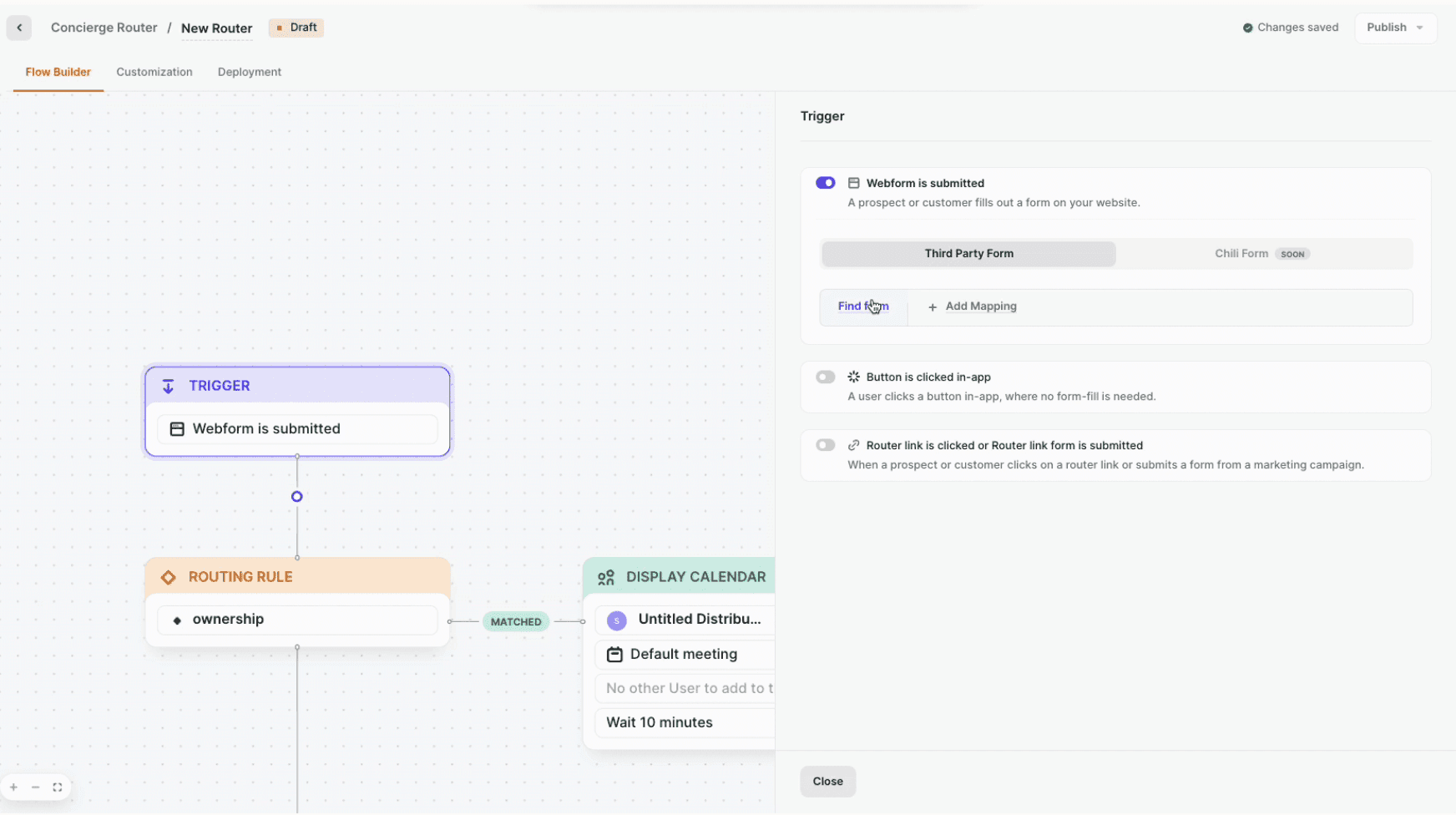
Chili Piper can create or update Leads and Contacts, change ownership, add prospects to campaigns, or update Salesforce fields.
After a meeting is booked, Chili Piper can write the meeting and routing details back to Salesforce. Your team can then see who received the lead and what meeting was booked.
How Chili Piper uses Salesforce data to route leads
When a prospect requests a demo, Chili Piper can use Salesforce data to decide who should receive the lead and what happens next. Here’s how it works:
Step 1: The prospect submits your demo form. Chili Piper receives the information they entered, such as their email, company, and other form fields.
Step 2: Chili Piper checks Salesforce. It looks for an existing Lead or Contact. If it finds one, it can use details like the record owner, territory, or company size for routing.
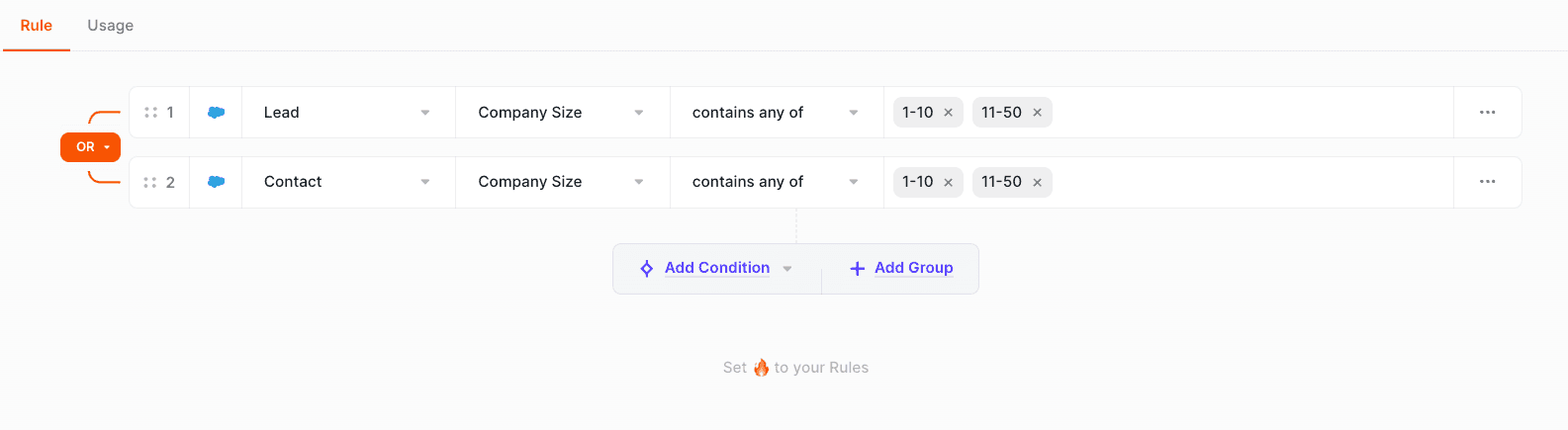
Step 3: The router chooses the next step. The router is the set of rules that decides where the lead goes. An existing customer might go to their assigned account owner, while a new prospect might be routed by territory.
Step 4: The prospect books a meeting. Chili Piper shows the selected rep’s available times and lets the prospect choose one.
Step 5: Salesforce is updated. Chili Piper can update the record, change ownership, create an Event, or add the prospect to a campaign, depending on your setup.
Note: If the prospect doesn’t already exist in Salesforce, Chili Piper can create a new Lead or Contact. You can also leave record creation to another tool, such as your marketing automation platform, and use Chili Piper for routing and booking.
What you need before connecting Salesforce to Chili Piper
Before you connect Chili Piper to Salesforce, make sure you meet these Chili Piper integration requirements:
Admin access: You need someone with the right permissions in both Salesforce and Chili Piper to connect and configure the integration.
Salesforce login: The initial connection requires a Salesforce user who can log in through a browser. An Application Programming Interface (API)-only user can’t complete this step.
API, object, and field permissions: Chili Piper needs access to the Salesforce records and fields used in your workflow. For example, if you route leads by territory or account owner, it needs permissions to read those fields. If Chili Piper will update ownership or meeting details, it also needs permission to write to them.
Clear record-creation rules: Decide whether Chili Piper or another tool will create new Leads or Contacts.
Routing rules and calendars: Define who should receive each type of lead and connect the calendars Chili Piper will use to show availability.
A test plan: Test a few scenarios before going live, including new prospects, existing records, and leads with no matching owner.
How to set up the Chili Piper Salesforce integration
Setting up the Chili Piper Salesforce connector involves four main steps: connect Salesforce, set permissions, configure routing, and choose what data Chili Piper writes back.
Authorize the Salesforce connection
Go to Command Center > Integrations from the Chili Piper dashboard and connect Salesforce.
A Salesforce admin needs to make the initial connection. Chili Piper uses Open Authorization (OAuth), so the admin must be able to log in to Salesforce through a browser and approve access.
An API-only Salesforce Integration User License can’t make this initial connection. Chili Piper recommends starting with an admin on a standard Salesforce license.
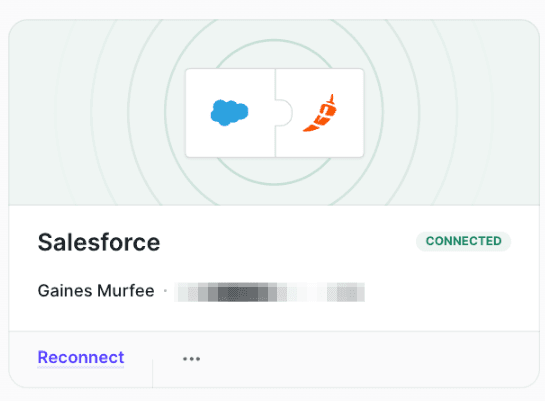
Once the connection is successful, Salesforce appears as Connected in Chili Piper:
Confirm record and field access
Next, make sure Chili Piper can read and update the Salesforce data your workflow uses.
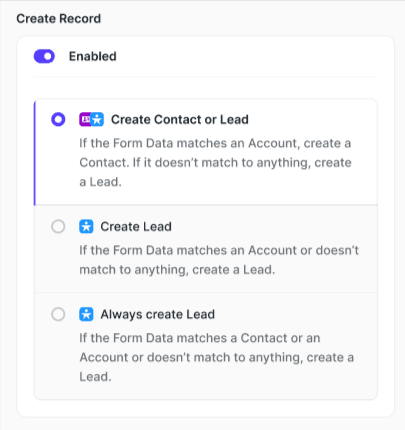
It needs read access to Leads and Contacts to check whether a prospect already exists. If you want Chili Piper to create or update records, it also needs the relevant Create or Edit permissions.
The same applies to fields used for routing. If you route leads by territory, account owner, or company size, Chili Piper needs access to those fields.
You only need access to objects such as Opportunities, Cases, or Campaigns if your Chili Piper workflow uses them.
Configure routing and CRM actions
Decide what should happen after someone submits your form.
Go to Concierge > Concierge Router and create a Concierge Flow. Add your routing rules, such as sending an existing account to its owner or routing a new prospect by territory.
Then choose what Chili Piper should do in Salesforce. It can create or update a Lead or Contact, update its fields, change ownership, add the prospect to a campaign, or create an Event.
Configure booking and reporting data
Finally, decide what should happen in Salesforce when someone books a meeting.
Go to ChiliCal > CRM Actions and choose whether a booked meeting creates a Salesforce Event and which record the Event should be related to. Such as an Account or Opportunity.
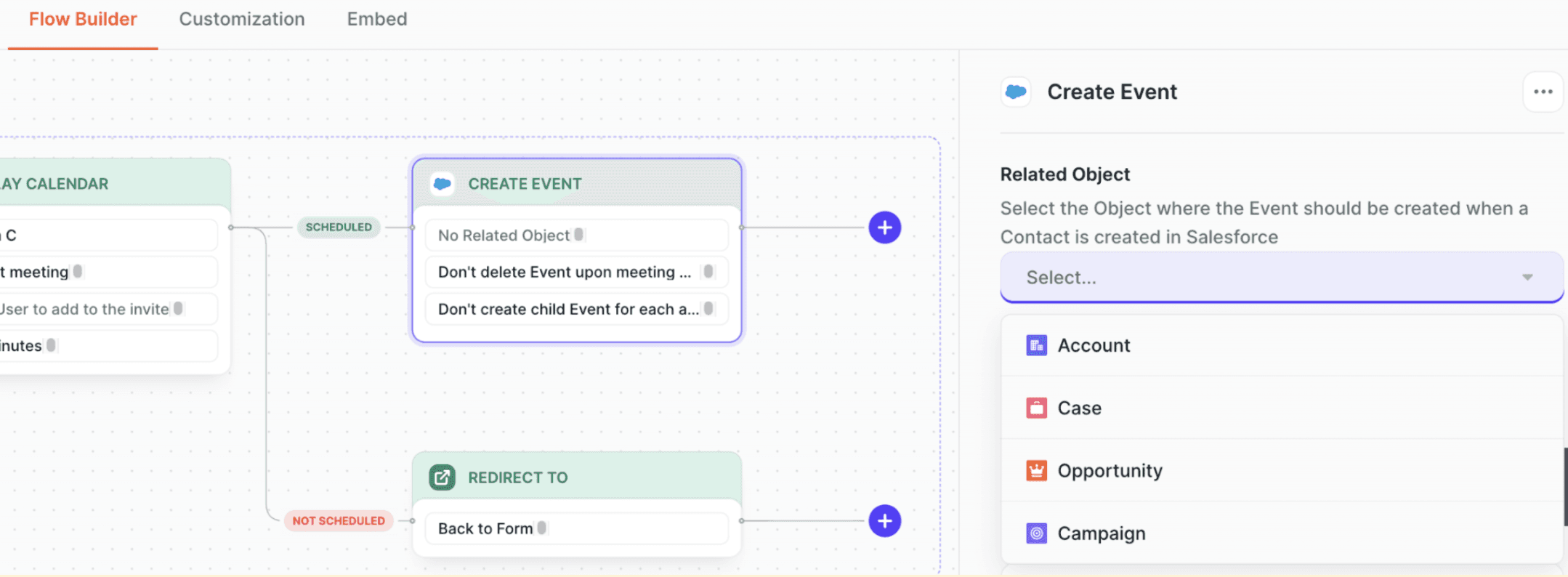
You can also control whether Chili Piper creates a Lead or Contact when it can’t find an existing record and whether the meeting assignee becomes the Salesforce record owner.
For reporting, Chili Piper provides Salesforce fields that write details such as meeting type, booking source, router name, matched rule, booking status, and no-show status.
Test the integration before going live
Before sending real prospects through the workflow, test the most common routing scenarios from start to finish.
Use the following checklist to test records that cover different outcomes:
A brand-new prospect: Confirm Chili Piper handles the form submission, creates or updates the right Salesforce record, and routes the lead correctly.
An existing Lead or Contact: Check that Chili Piper finds the existing record instead of creating a duplicate.
An existing account: Make sure ownership rules send the prospect to the correct rep.
Different routing criteria: Test values like territory, company size, or another Salesforce field used in your rules.
Booking: Confirm the correct rep’s availability appears and that the meeting is added to both calendars.
Salesforce updates: Check that ownership, meeting details, campaign membership, and any configured fields update as expected.
Reporting data: Confirm the Event and Chili Piper reporting fields appear on the correct Salesforce record.
Also test what happens when data is missing or no routing rule matches. It’s better to catch an empty field or incorrect fallback path before a real buyer reaches it.
Common Chili Piper Salesforce integration issues and fixes
Most problems come from the Salesforce connection, routing rules, or permissions:
Salesforce won’t connect
If the initial connection fails, first check which Salesforce user is authorizing it. Chili Piper requires a browser login, so an API-only user can’t make the initial connection.
You may also see an OAuth error if Salesforce blocks Chili Piper as an uninstalled connected app:
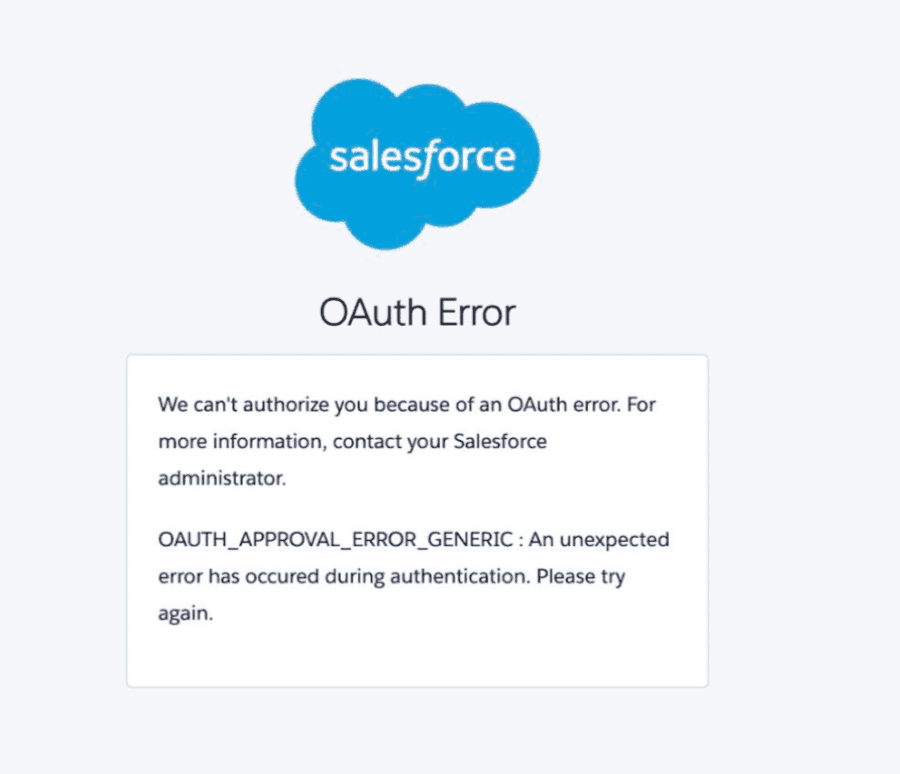
In that case, ask a Salesforce admin to install the Chili Piper connected app or give the user permission to approve it.
Leads are going to the wrong rep
Open Concierge > Logs and find the affected form submission.
The log shows which rules Chili Piper checked, what Salesforce data it used, and which rep received the lead.

For example, a territory rule may have expected “Germany” but Salesforce contains a different value.
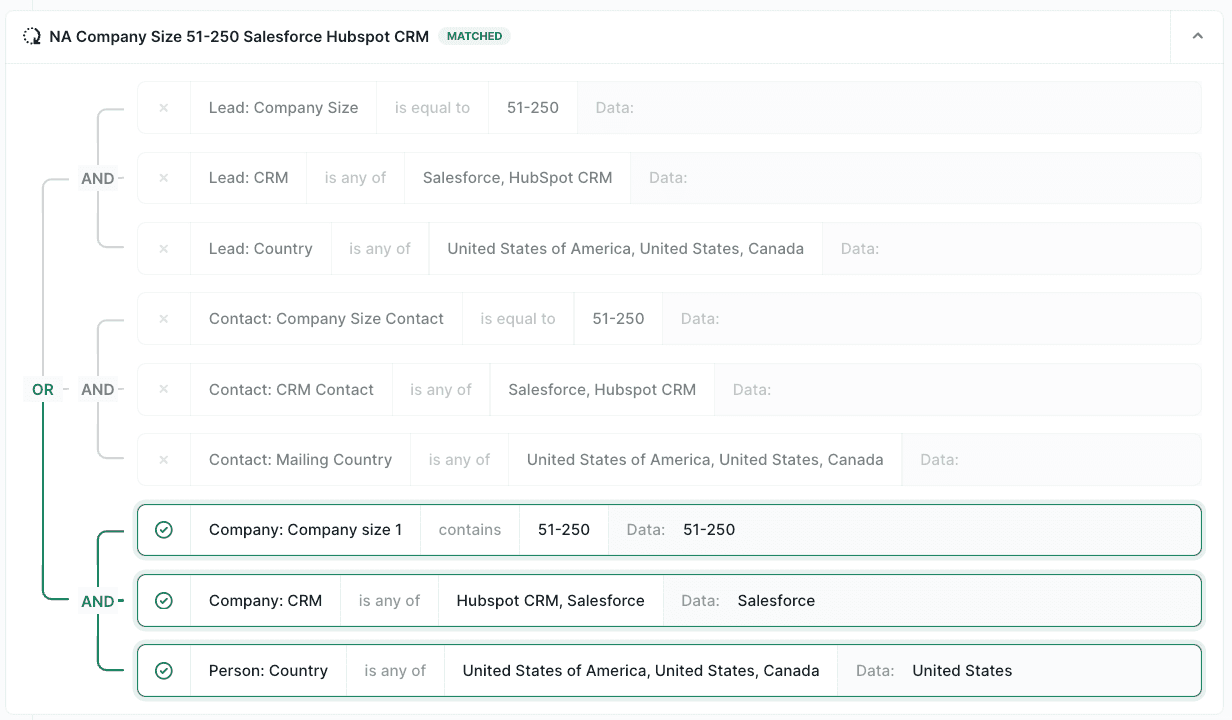
Once you find the mismatch, update the routing rule or correct the Salesforce data causing it.
Salesforce records or fields aren’t updating
First, check that the integration user has Read and Edit access to the affected object and field.
Then check Salesforce validation rules and field configuration. For example, an update can fail if Chili Piper sends a value that isn’t allowed in a restricted picklist.
Chili Piper also sends Salesforce API error notifications when a record update fails. Use the error message to identify the field, permission, or rule causing the problem.
Does your Chili Piper Salesforce setup meet your sales needs?
Your existing setup is probably enough if the problem comes from routing configuration or Salesforce data quality. Consider another platform only when your sales process needs capabilities Chili Piper doesn’t support directly or requires too much custom work to maintain.
Before changing platforms, identify what is causing the problem.
A configuration problem usually means the setup can support the workflow, but a rule or setting is wrong. For example, leads may be going to the wrong rep because a routing rule uses the wrong Salesforce field. Fixing the configuration should solve that.
If the problem is Salesforce data quality, the issue is similar. Missing owners, outdated account data, or inconsistent field values can cause poor routing even when Chili Piper is configured correctly. Cleaning up the CRM data may be enough.
The setup may no longer meet your needs if the limitation is in the workflow itself. For instance, you may need more advanced qualification, multi-channel follow-up, or engagement before and after a meeting is booked.
If the core workflow works but you want AI-assisted access to routing or meeting data, Chili Piper Model Context Protocol (MCP) may extend the setup without replacing it.
The same applies if your team relies on too many middleware steps, custom workflows, or manual fixes to keep the process running.
Those are the cases where it makes sense to compare Chili Piper alternatives and pick the one that matches your workflow better.
How Spara works with Salesforce
Spara can engage and qualify a buyer before a meeting is booked, then schedule the next step or continue the follow-up. It can also write the resulting conversation and qualification context into Salesforce.
For example, a buyer can start a conversation with a Spara agent through the chat on your website. The agent can ask follow-up questions about their company, use case, budget, or buying timeline. Based on their answers, it can route a qualified buyer to the right sales team and book a meeting, or continue the follow-up if they aren’t ready to book.
Spara can write qualification answers and conversation context back to the CRM.
Your team still defines the qualification criteria, routing logic, and what should happen next. If you’re not ready to move everything at once, Spara works with Chili Piper Concierge and ChiliCal. For the full side-by-side, see how Spara compares with Chili Piper.
Should you improve the setup or change the approach?
Chili Piper and Salesforce are a good fit if you mainly need to qualify, route, schedule, and track inbound leads using CRM data. And if the Chili Piper pricing still makes sense for your team.
If leads are being routed to the wrong reps, meetings aren’t being booked properly, or Salesforce records aren’t updating, check your routing rules, permissions, field mappings, and CRM data first. A configuration issue doesn’t necessarily mean you need a different platform. If the issue involves another tool, check whether Chili Piper supports the integration before switching.
However, Spara is worth considering when the gap is in what the workflow needs to do, not how Chili Piper is configured. For example, your team may need AI agents to engage and qualify buyers across multiple channels, continue follow-up before or after booking, and write that context back to Salesforce.

Lauren ThompsonHead of Marketing, Spara
Related posts
View all
GTM
Chili Piper Pricing (2026): Plans, Seats, and Total Cost
Explore Chili Piper pricing, included seats, AI credits, and annual costs. See what affects your total spend and what to confirm before choosing a plan.
Nov 2, 2026
•
7 min read

GTM
Qualified Pricing (2026): Plans, Limits, and Budgeting
Understand Qualified pricing, plan features, and usage limits. Learn what to ask for in a quote and how to compare the full cost with your sales needs.
Nov 2, 2026
•
7 min read

GTM
Qualified Integrations: API, MCP, and Stack Fit
Explore Qualified integrations, API options, and MCP capabilities. See supported tools, access requirements, and how to assess fit for your GTM stack.
Nov 2, 2026
•
5 min read
Sign up for the latest from Spara
Subscribe to get more GTM insights straight to your inbox.